
The tools a VDS operation needs
Orders, provisioning, day-to-day management, backups and hardware failures are all handled from one panel.
Automated provisioning
Provisioning starts as soon as the order is approved. If vCenter stops responding briefly or the server restarts, the process resumes from the step where it stopped.
-
Placement rules
A suitable cluster, host and datastore are selected for the order's location. You can spread servers evenly or fill one cluster first.
-
Overcommit and limits
Set a priority and a server limit for each cluster. Define overcommit ratios for CPU, RAM and disk.
-
Guest OS configuration
Hostname, root or Administrator password, IP addresses and disk expansion are applied through VMware Tools. Every server boots with its own SSH keys.
-
Custom scripts
Add a script that runs at the end of provisioning, or replace any step with your own script per operating system.
-
Linux, FreeBSD and Windows
Ubuntu, Debian, AlmaLinux, Rocky Linux, CloudLinux and other common distributions. Windows Server and Windows desktop editions are also supported.
-
Cancelling a provisioning job
When you cancel a provisioning job, the task in vCenter is stopped as well. No half-built VM is left behind.
Server management
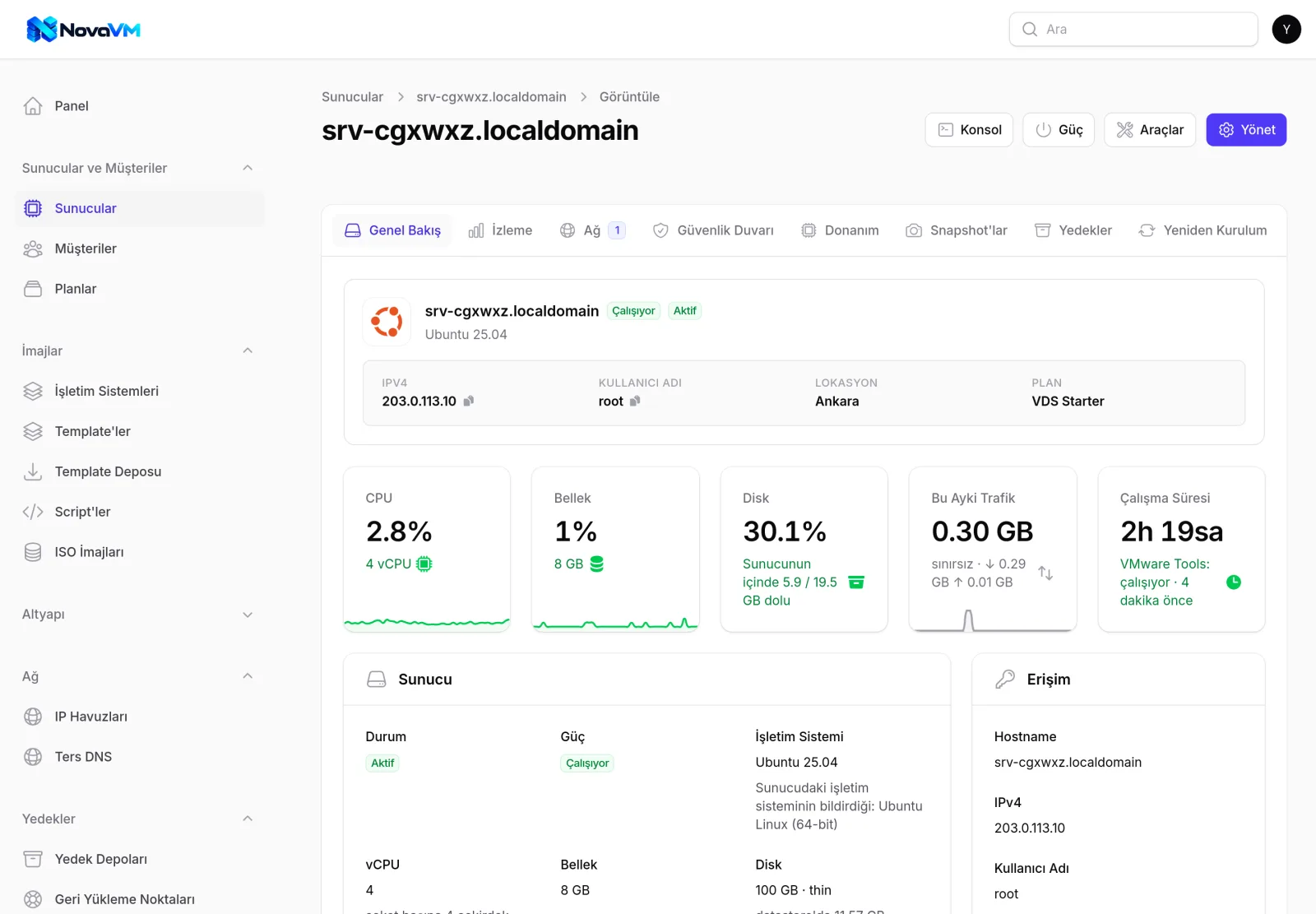
Each server has its own page. Status, resource usage, IP addresses, firewall, snapshots and backups are shown on one screen.
-
Power and console
Start, stop, restart and hard reset. A single-use web console that opens in the browser.
-
Reinstall
Reinstall from scratch with the same or a different operating system. IP addresses stay the same.
-
Resource upgrades
Increase CPU, RAM and disk. With hot-add enabled, the server does not need to be shut down.
-
Additional disks and space reclamation
Add, expand and remove disks. Space used by deleted files is reclaimed on the datastore.
-
Snapshots and migration
Take snapshots and revert to them. Move servers to another host or datastore with vMotion and Storage vMotion.
-
Password recovery
Set a new password on Linux, Windows and FreeBSD servers with the recovery ISO, even when the current password is unknown.
-
Suspension and isolation
Suspend and unsuspend commands from your billing system are applied. In case of abuse, the server's network connection can be cut completely.
-
Bulk actions and recycle bin
Run actions on selected servers in bulk. With the recycle bin enabled, deleted servers are kept there and can be restored.
IP and network management
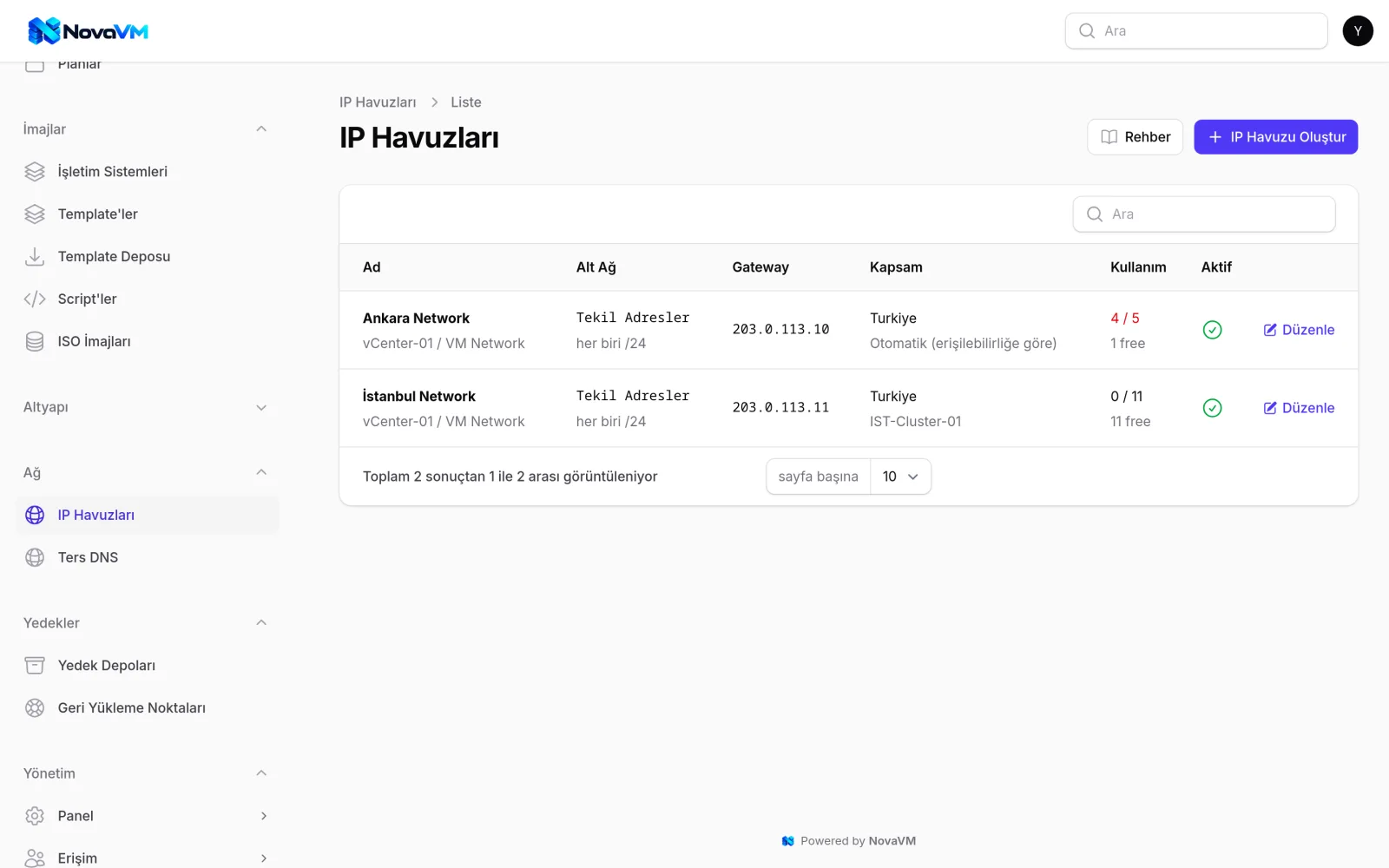
IP pools, assignments and PTR records are managed in one place.
-
IPv4 and IPv6 pools
Bind each pool to a portgroup or VLAN. You are warned when a pool is close to running out.
-
Flexible assignment
The next free IP is assigned automatically or chosen from the list. Additional IPs, primary IP changes and moves to another network are handled from the panel.
-
Reverse DNS
Connect your existing PowerDNS server or let NovaVM install one. PTR records are created automatically.
-
IP protection
If a server uses an IP address that is not assigned to it, NovaVM detects it within 5 minutes.
-
Firewall
Per-server port and source IP rules, using nftables on Linux and Windows Firewall on Windows.
-
Guest OS rules
View the ufw, firewalld, iptables or Windows Firewall rules defined inside the server from the panel.
Operating systems and templates
The operating systems you sell are matched automatically to the templates in each vCenter, so your products stay the same in every location.
-
Template library
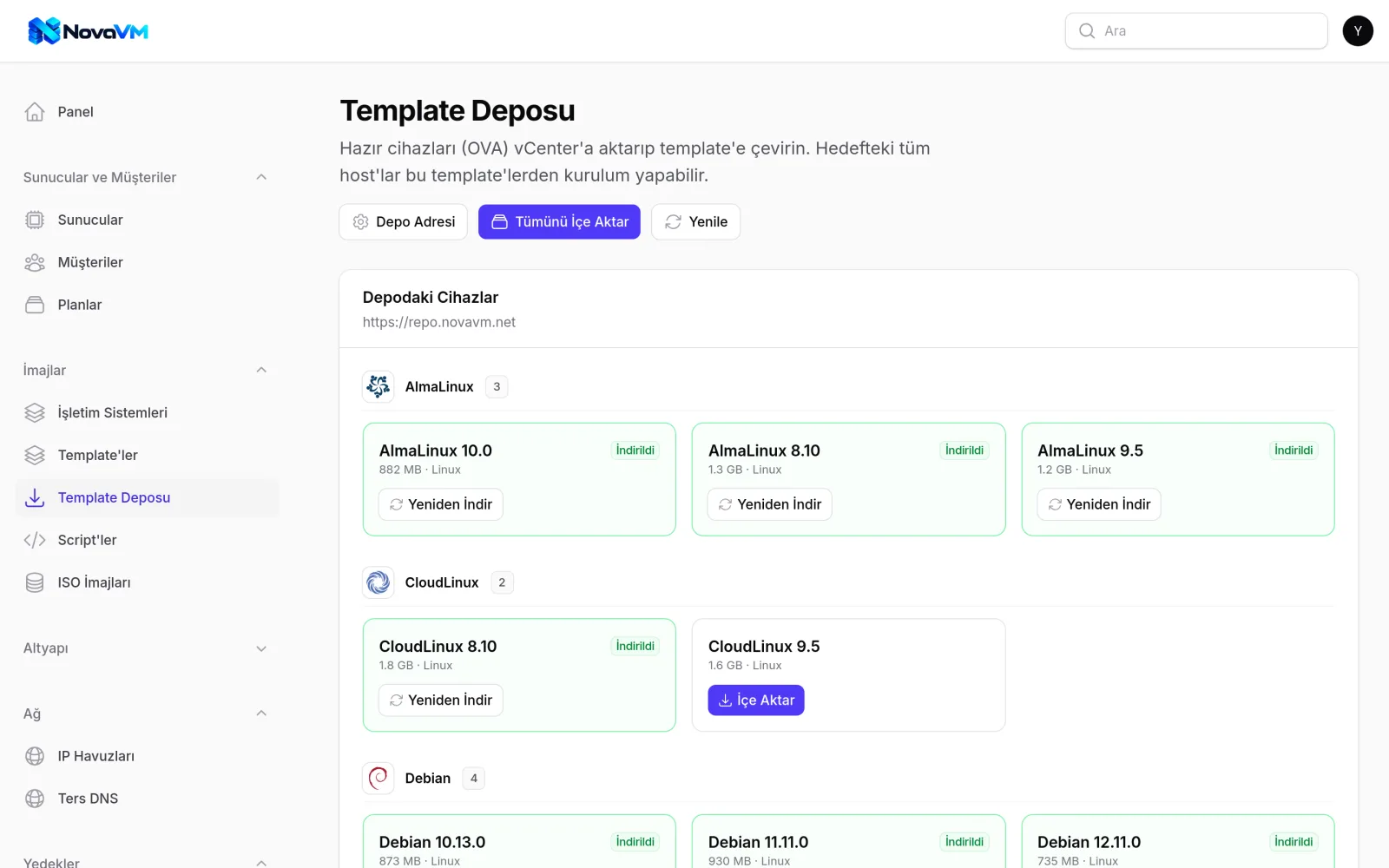
Import ready-made templates from the library directly into your vCenter. The panel notifies you when a new version is released.
-
Template updates
No need to convert templates to VMs by hand to update them. NovaVM updates the template and converts it back.
-
ISO library
Attach ISO files from your datastores to servers and boot servers from an ISO.
-
Plans
CPU, RAM, disk, location, operating systems, IP count, snapshot and reinstall limits are defined per plan.
Backups and Veeam support
A snapshot is not a substitute for a backup. NovaVM backs up server disks by copying them to a separate datastore, and also works with Veeam.
-
No additional hardware
The disks of a running server are copied to a datastore you choose in vCenter. Data stays on your infrastructure.
-
Veeam Backup & Replication
NovaVM adds your vCenter to Veeam and manages the backup job. After the first backup, only changed data is backed up.
-
Scheduled backups
Hourly, daily, weekly or monthly backups per server or per plan. You decide how many backups to keep.
-
Restoring deleted servers
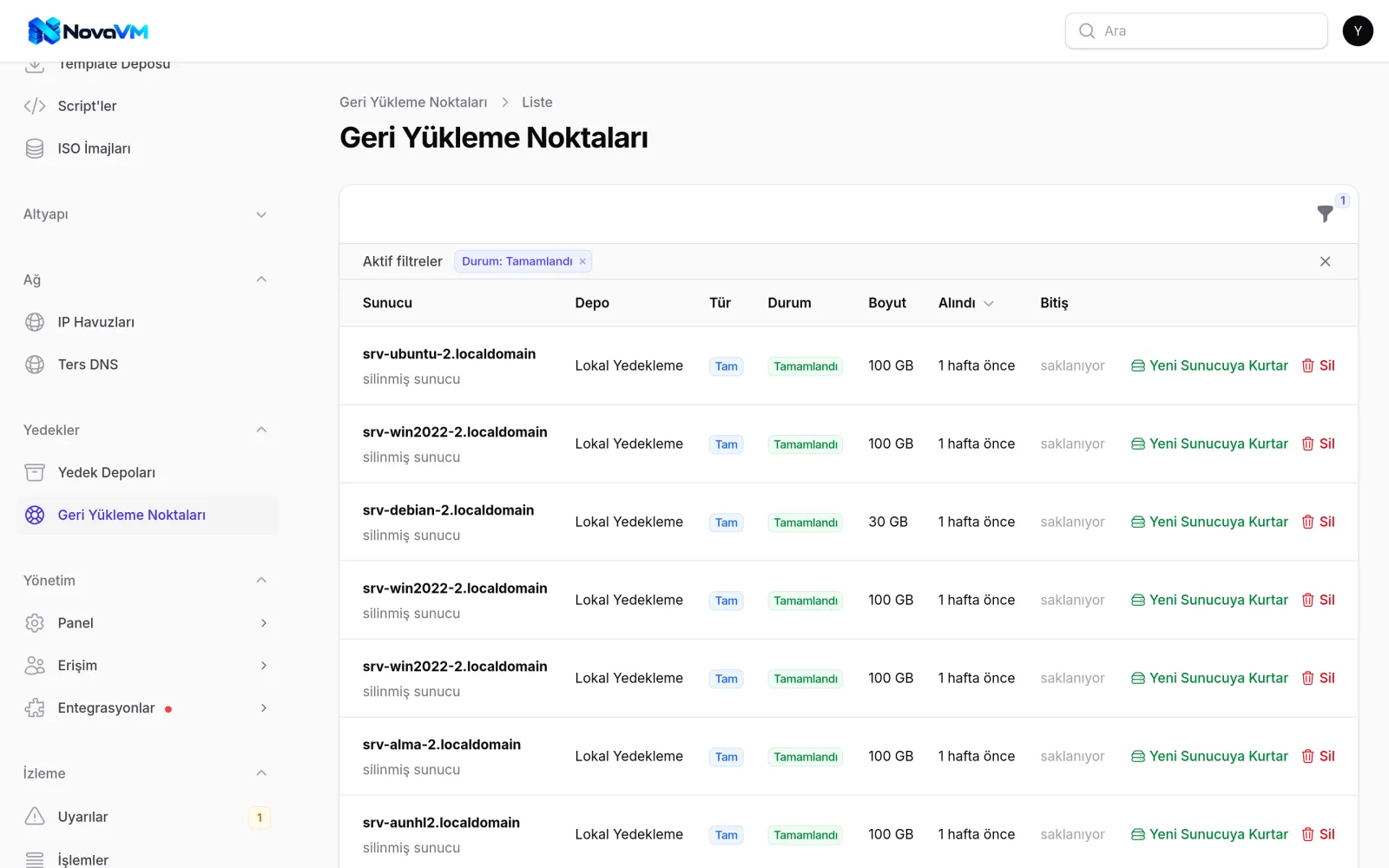
Backups are kept even after a server is deleted. You can recreate the server with the same or new IP addresses.
-
Panel backups
The NovaVM database is backed up encrypted to local disk, S3, Google Drive or SFTP.
Monitoring and notifications
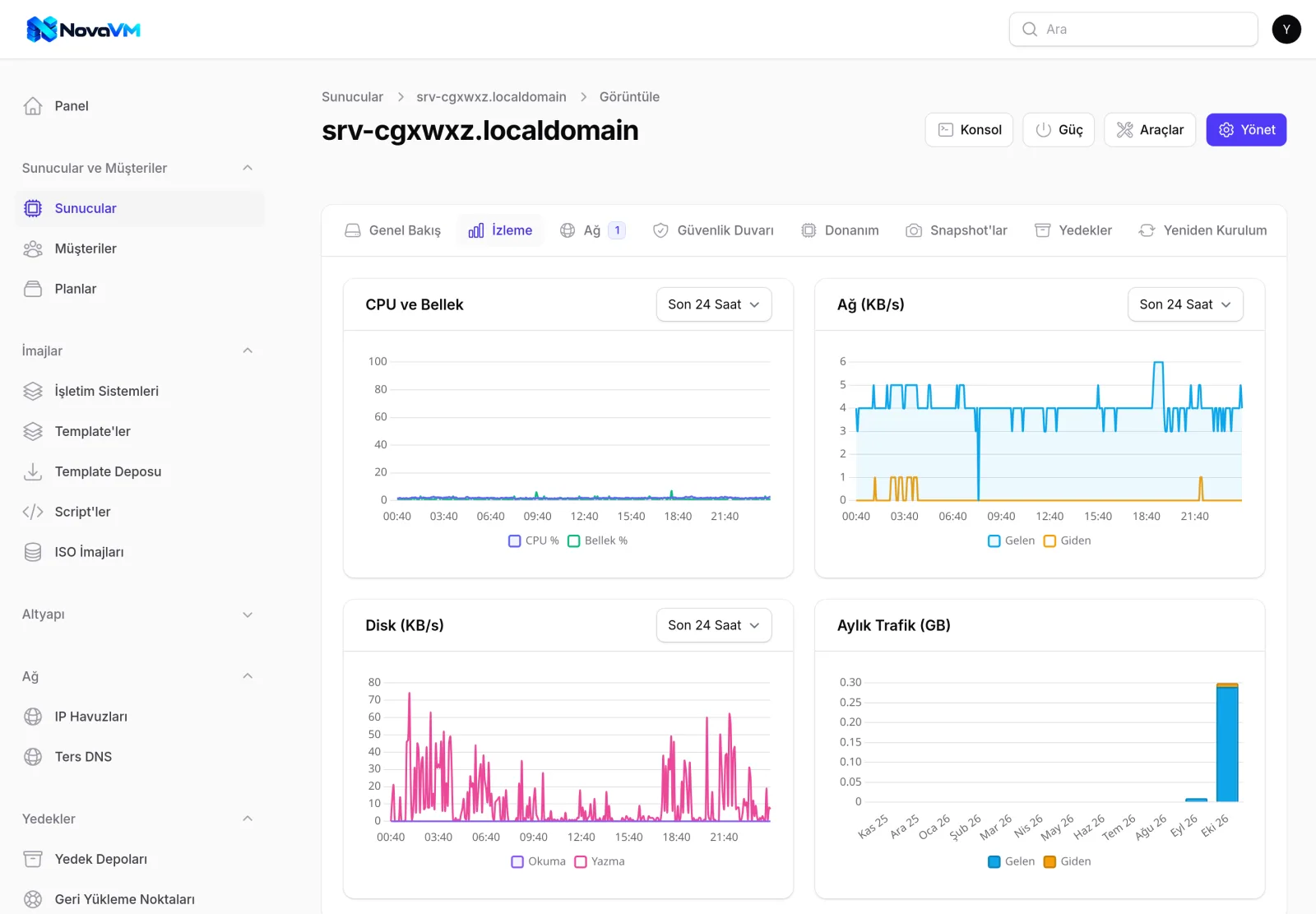
Graphs and notifications for resource usage, traffic quotas and system health.
-
Graphs
CPU, RAM, disk and network usage are collected every 5 minutes and can be viewed for the last 24 hours, 7 days and 30 days.
-
Traffic quotas
Your team is warned when a quota is close to running out. When it runs out, the event can be logged only, your team can be notified or the server can be suspended.
-
Health checks
vCenter connectivity, datastore and IP pool usage, stuck jobs and license status are checked every minute.
-
Email and Telegram
One notification is sent per issue, and another when the issue is resolved.
Importing existing servers
Moving to NovaVM does not require any changes to your customers' servers.
-
VM import
Import the servers already in your vCenter into NovaVM. IP addresses are read from VMware Tools or the VM name. Each import produces a report.
-
Migrating from DiyoVM
Upload the DiyoVM database backup. Servers, IP blocks, operating systems and passwords are imported, and the servers keep running throughout.
Branding and languages
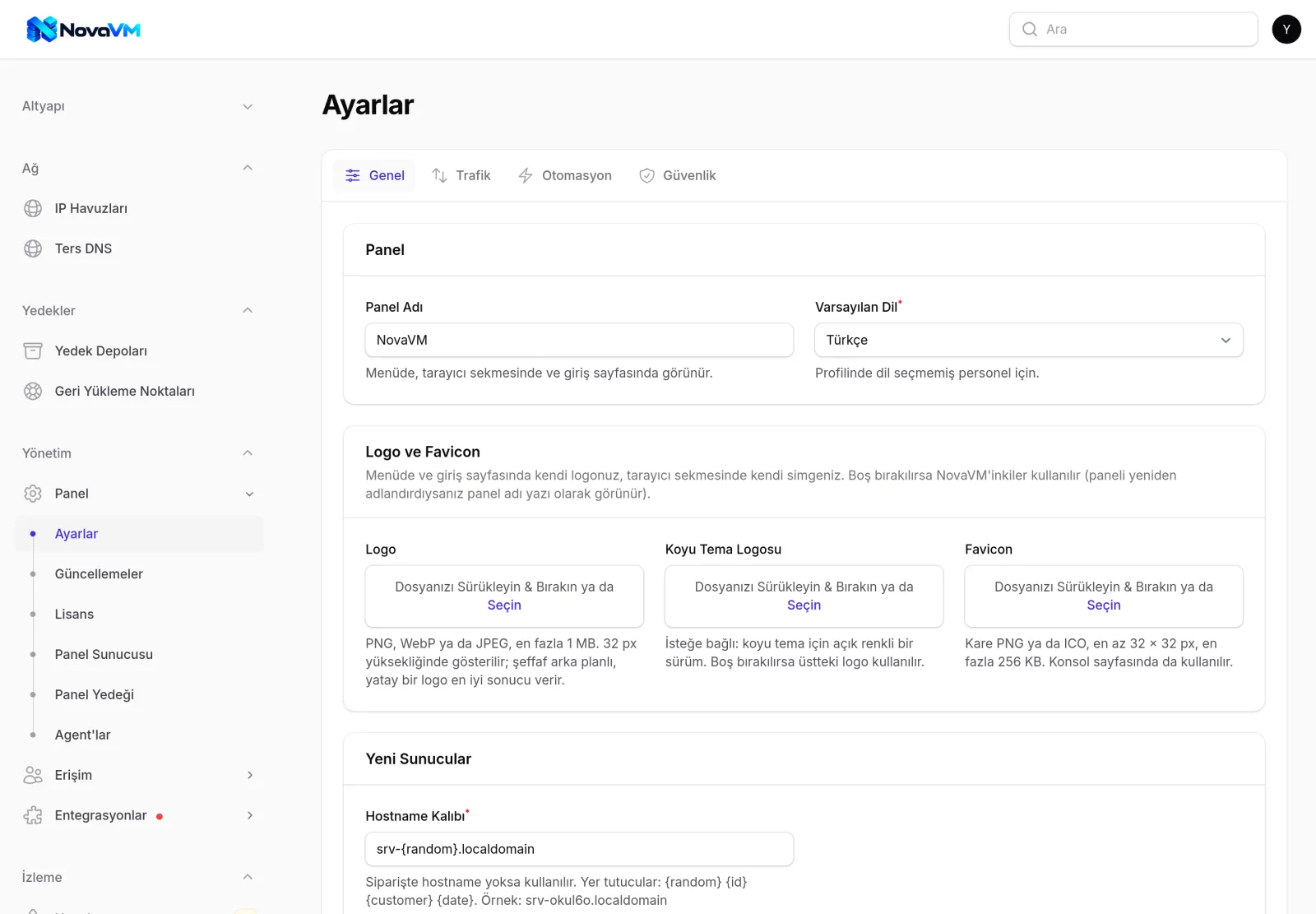
Use your own logo in the panel and let each team member choose their interface language.
-
Logo and favicon
Upload your own logo and favicon. You can use a separate logo for the dark theme.
-
Five languages
English, Turkish, German, Spanish and Russian. Each user chooses their own language.
-
Built-in guide
An illustrated user guide in English and Turkish is available inside the panel.
Try NovaVM free for 7 days
Run NovaVM on your own vCenter and see the full workflow before you decide. Prefer a guided tour? Request a demo.